Connecting your PMS
This guide explains how to connect a Guesty PMS account to the Livily channel by pushing listings from Guesty, selecting the appropriate settings, and completing the registration link sent by email. Following these steps will complete the integration setup on both platforms.
Streamline — STEP 1: Generate API Key(s) & Obtain Credentials
To connect your Streamline account to Livily, you'll need an Advertiser ID, a Token Key (API Token Key), and a Token Secret Key from Streamline.
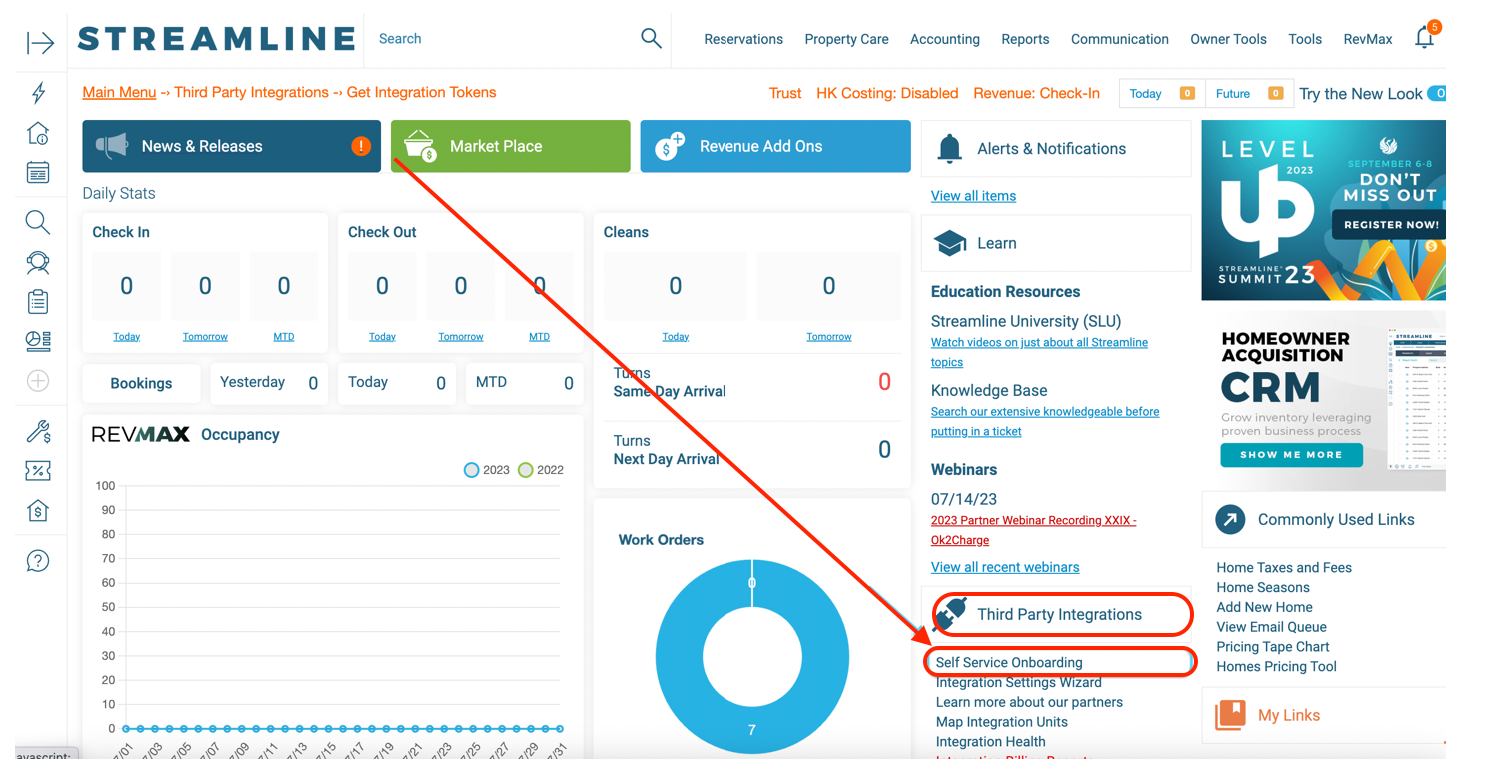
- From your Streamline Main Menu, go to Third Party Integrations → Self Service Onboarding (Get Integration Tokens).
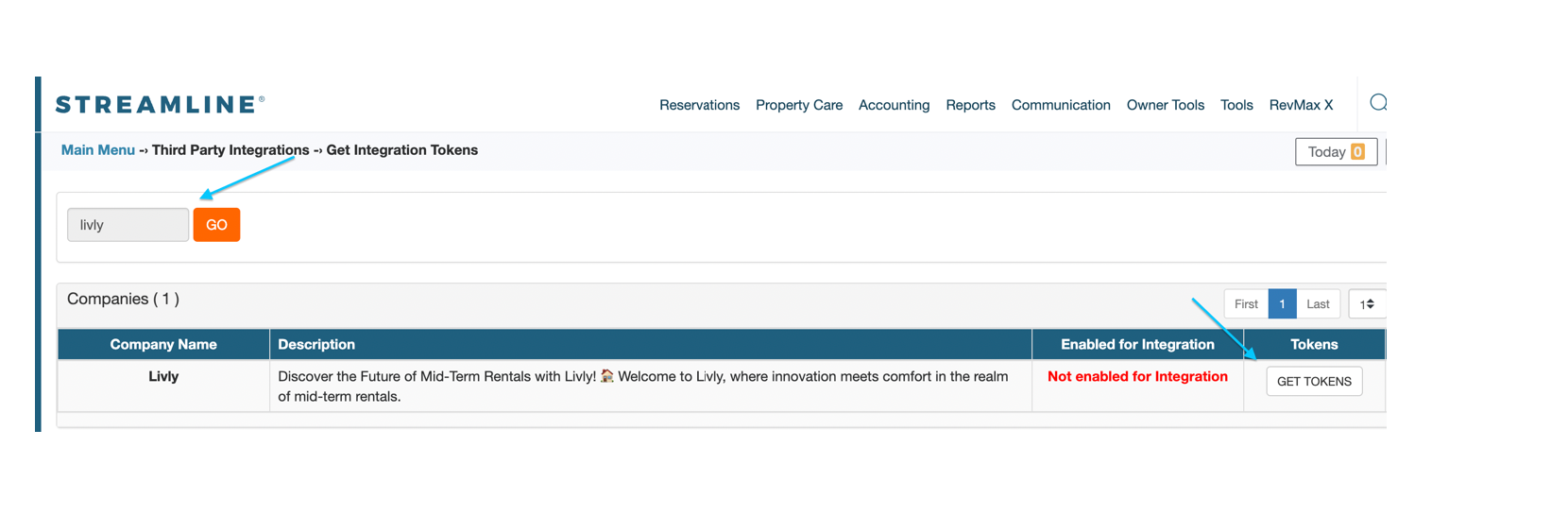
- Search 'livly' and click GO to find the Livily company.
- Click GET TOKENS on the Livily row to display your Advertiser ID, Token Key, and Token Secret Key.
- Copy and save all three credentials — you'll need them to complete the connection.
These instructions may differ slightly due to Streamline updates. For help obtaining credentials, contact Streamline support at support@streamlinevrs.com.
Streamline — STEP 2: Enter your Tokens on Livily
Add your Streamline credentials inside Livily:
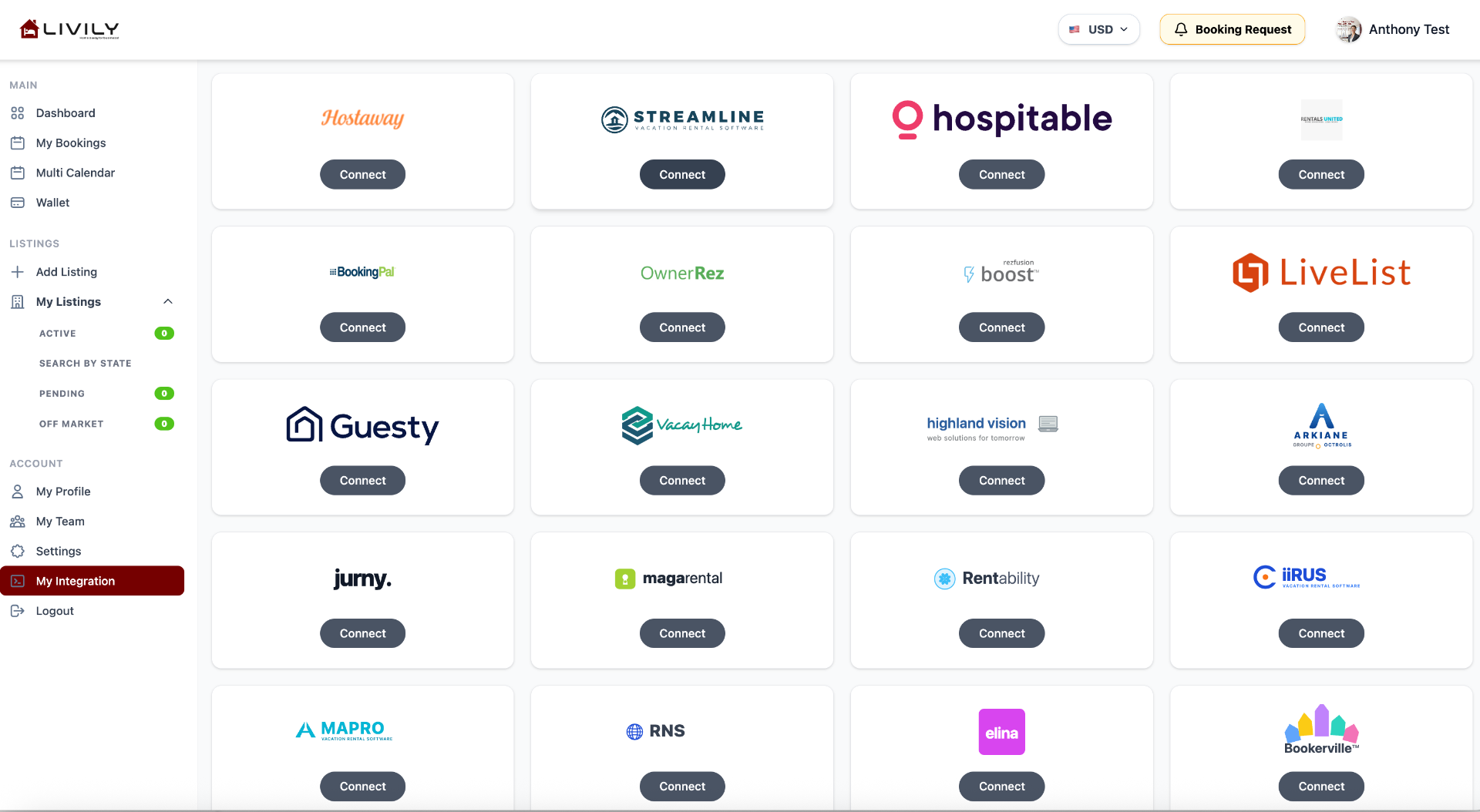
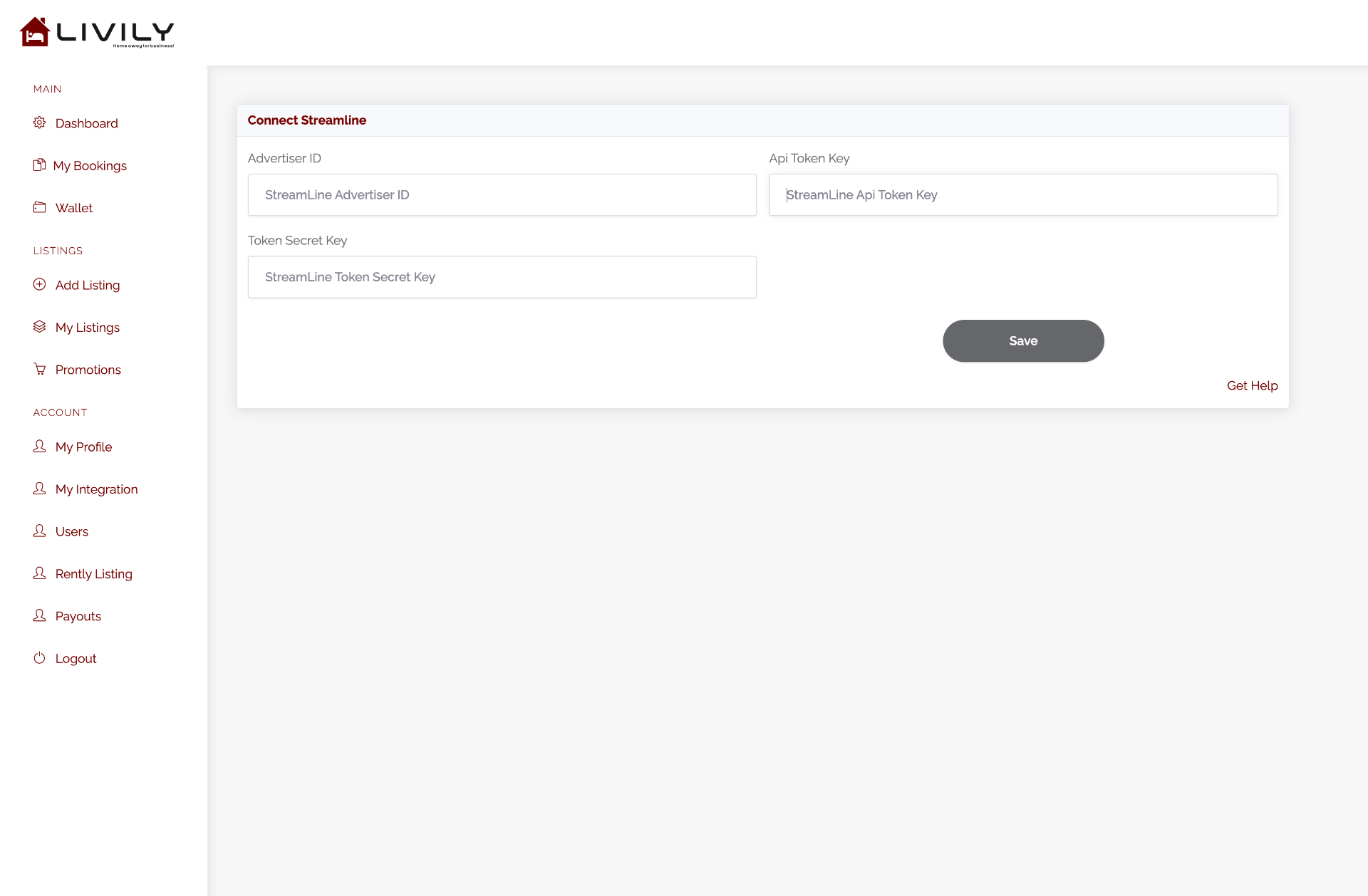
- Log in to Livily and open the My Integration page from the left sidebar.
- Locate the Streamline tile and click Connect.
- Enter your Advertiser ID, API Token Key, and Token Secret Key.
- Click Save to complete the connection.
Streamline — STEP 3: Enable 'PUSH' units in Streamline
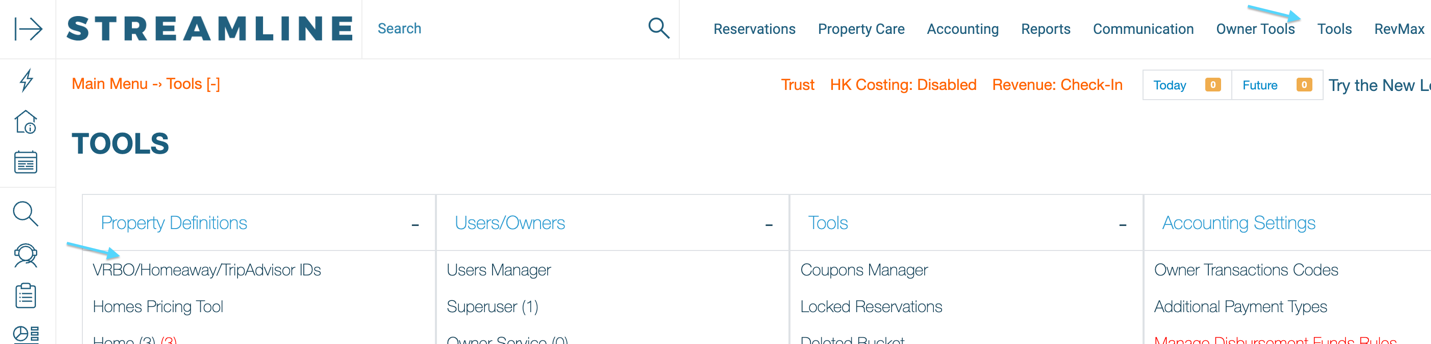
Back in Streamline, push the units you want to sync using the VRBO/Homeaway/TripAdvisor IDs tool:
- Go to Tools → VRBO/Homeaway/TripAdvisor IDs.
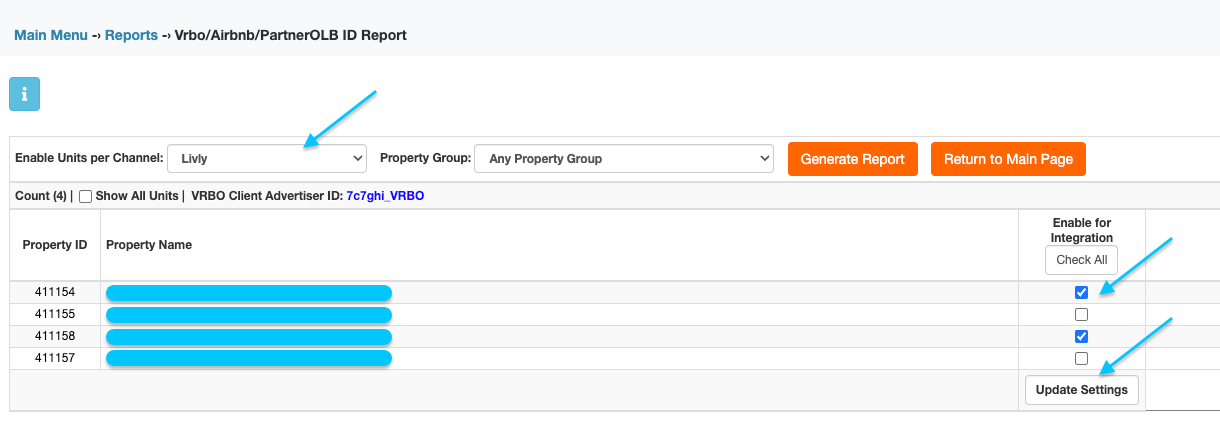
- Set 'Enable Units per Channel' to Livly.
- Click Generate Report to display all available units.
- Enable the checkbox for each unit you want to integrate with Livily.
- Click Update Settings to save.
📲 Need Help?
If you run into issues connecting Guesty, Hostaway, Streamline, Hospitable, Boost, OwnerRez, Rentals United, or BookingPal to Livily, our integrations team is here to help. You can also reach our customer support team at hosthelp@livily.com for assistance.
- Contact Support
Welcome to business-class bookings.