Connecting your PMS
This guide explains how to connect a Guesty PMS account to the Livily channel by pushing listings from Guesty, selecting the appropriate settings, and completing the registration link sent by email. Following these steps will complete the integration setup on both platforms.
Boost — STEP 1: Push Your Listings from Boost to Livily
Start by enabling the Livily channel in your Boost Rezfusion account:
- Log in to your Boost Rezfusion account.
- Navigate to Channels or Channel Management.
- Locate Livily in the list of available channels.
- Enable Livily for the properties you want to distribute.
- Save your changes and push your eligible listings to Livily.
Boost — STEP 2: Locate Your Boost Account ID
Your Boost Account ID is the numeric ID associated with your Boost account. This may appear in Boost as your account, company, or channel identifier.
- If you are unsure where to find it, contact your Boost representative and ask for your Boost Account ID used for the Livily channel connection.
Example format: 3658
Boost — STEP 3: Connect Boost in Livily
Complete the connection on the Livily side:
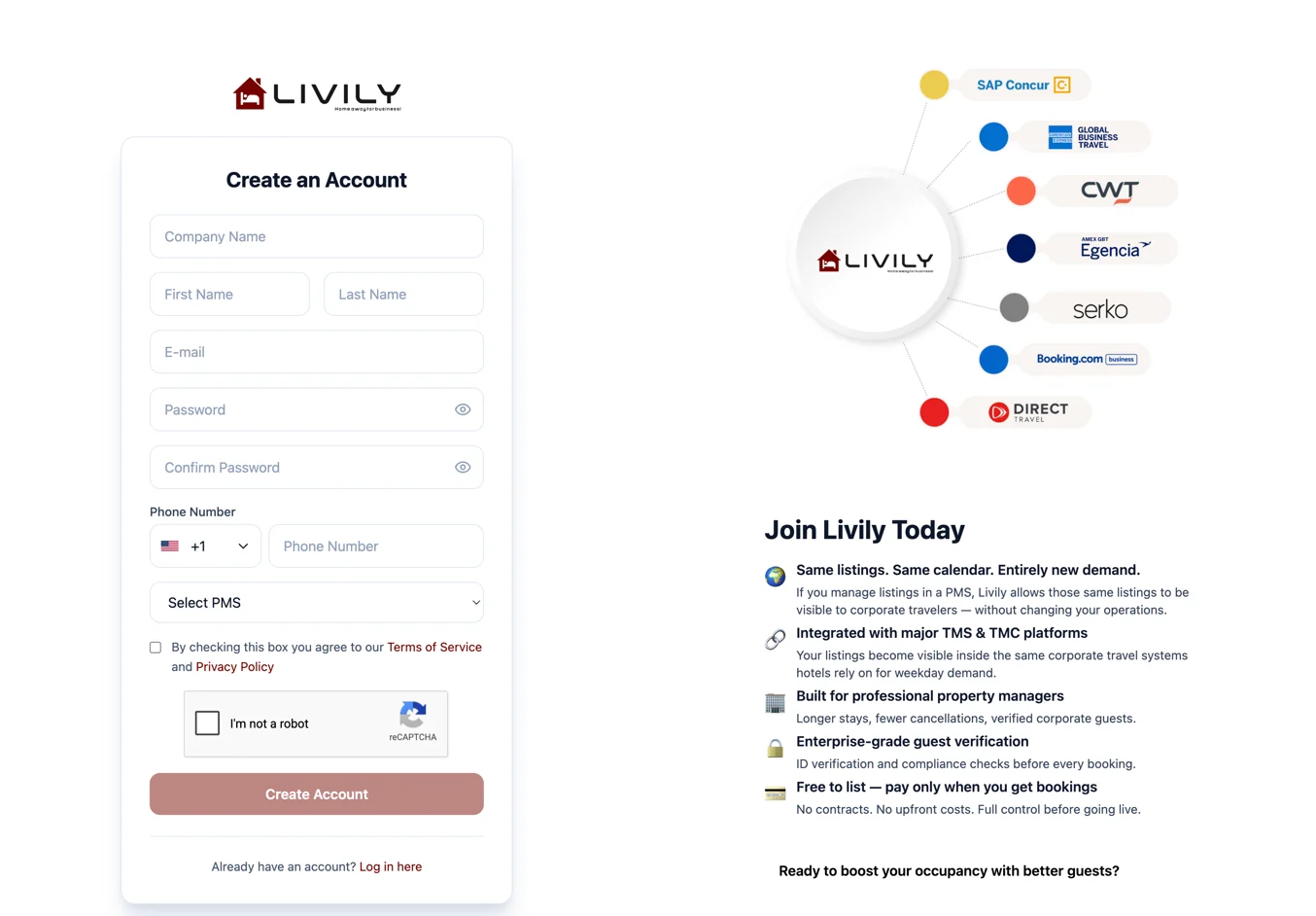
- Create a Livily account at livily.com/register (if you haven't already).
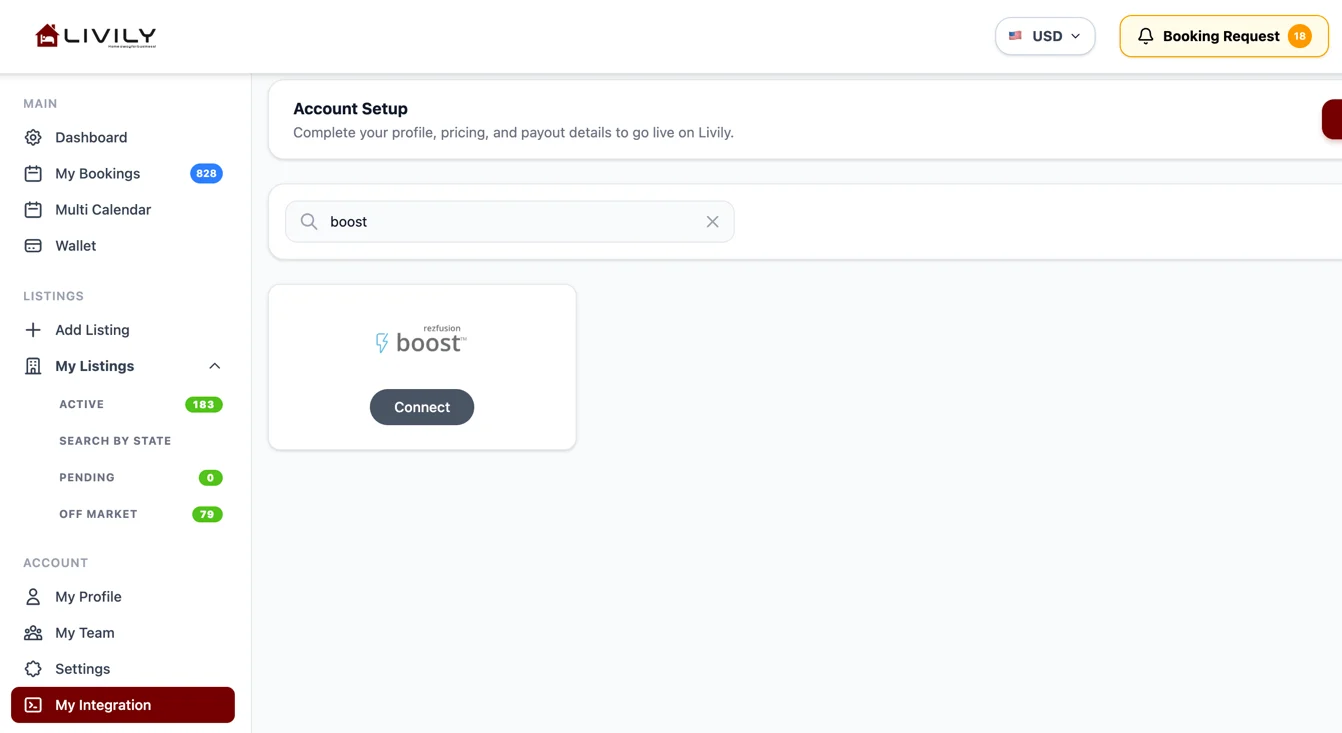
- In Livily, go to Integrations → Search Boost.
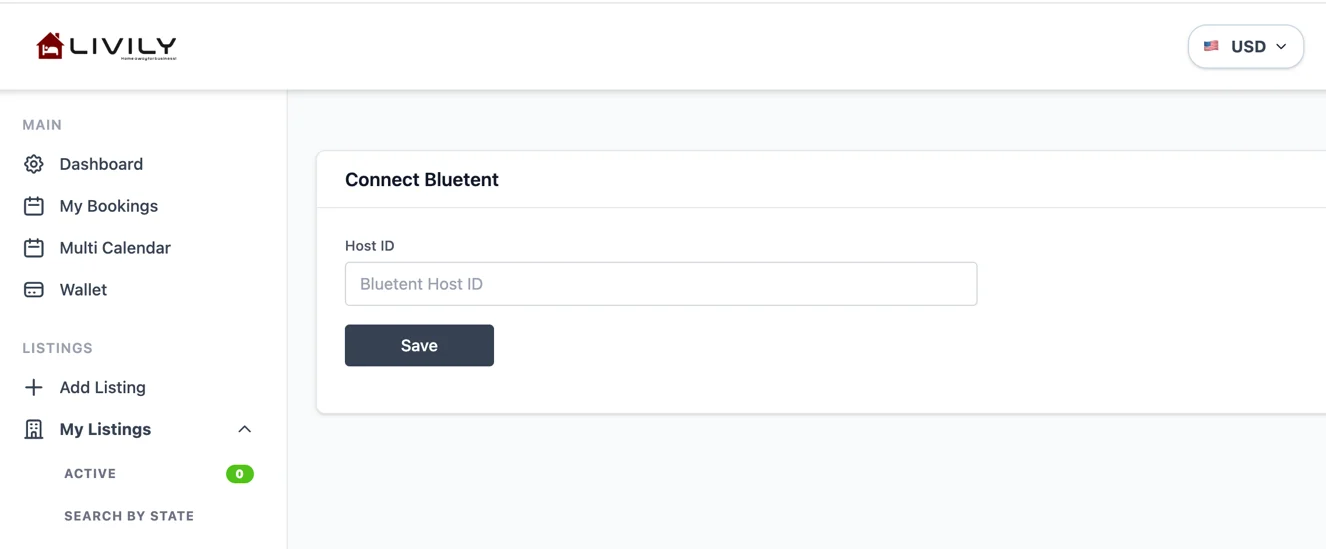
- Enter your Boost Account ID.
- Click Save.
Once connected, Livily will match your account to the listings pushed from Boost. Your listings should then appear inside your Livily dashboard.
📲 Need Help?
If you run into issues connecting Guesty, Hostaway, Streamline, Hospitable, Boost, OwnerRez, Rentals United, or BookingPal to Livily, our integrations team is here to help. You can also reach our customer support team at hosthelp@livily.com for assistance.
- Contact Support
Welcome to business-class bookings.